SGBookKeep — Singapore
For freelancers & small businesses
Simple bookkeeping, without the year-end stress.
Track income and expenses, plus simple invoices—in one place for tax time and your accountant.
Multiple ledgers, receipt photos, CSV export, and PDF reports. Create simple invoices in the browser, print or save as PDF, and book income in one tap.
From only SGD 6.50/month. Save hours on receipts, reconciliation, and spreadsheets.
Built for your phone: snap receipts on the go—the quick button opens the camera first. Invoices for clients, print or save as PDF from the browser.
Illustrative screen (actual UI after sign-in)
- SGD 6.50/mo · SGD 65/year (annual ≈ two months free vs monthly)
- 14-day free trial
- SGD, USD, MYR, and other common currencies
- Simple invoices: print/PDF; book income in one tap
- Try free tools on the homepage — no sign-in
Good fit for
- Sole props and small online sellers
- People who need simple P&L by category
- Anyone who wants invoices next to their books
- Multi-currency selling with SGD as anchor
- People who are not accountants
- People who only need income & expense tracking
- People preparing figures for tax filing or an accountant
- People who invoice clients and want it next to their books
Not a fit
- Payroll / CPF rules you need built-in
- Full statutory filing inside the app
- Balance sheet & audit packages
- Automatic bank feed reconciliation
- Large team expense workflows
- Mid-size corporate finance
Add SGBookKeep to your home screen
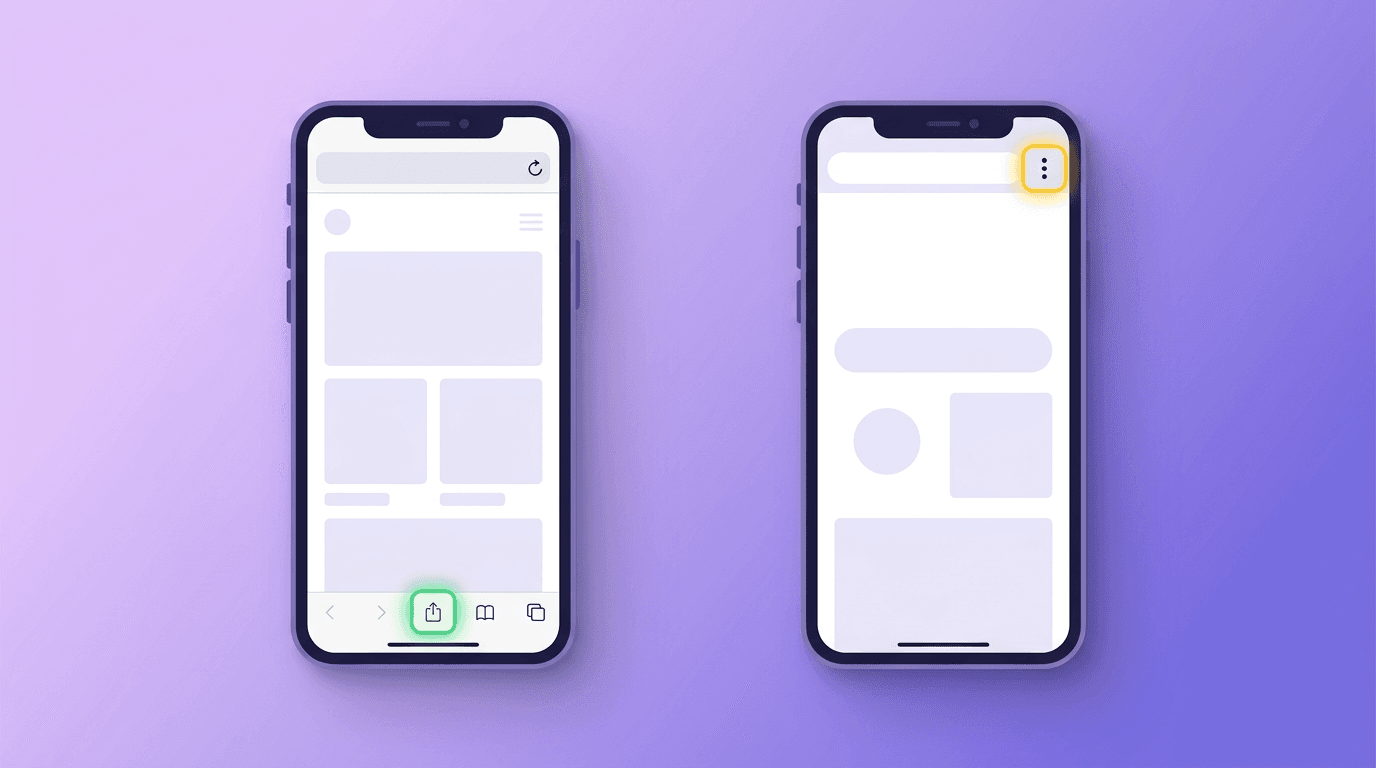
Many people in Singapore use WhatsApp, Telegram, and the mobile browser. With Safari (iPhone/iPad) or Chrome (Android), add this site to your home screen for an icon that works like a lightweight app.
No App Store search, no huge install, and you always get the latest web version.
iPhone · iPad (Safari)
Illustration: Safari address bar at the top
Step 1
Open this site in Safari
Open the site in Safari on your phone. From an in-app browser, tap “⋯” or Share, then “Open in Safari”.
Illustration: Share icon in the bottom bar
Step 2
Tap the Share button
At the bottom centre, tap the square-with-up-arrow (Share). If the bar is hidden, scroll slightly.
Illustration: Add to Home Screen row
Step 3
Choose “Add to Home Screen”
Scroll the share sheet, tap “Add to Home Screen”, edit the name if you like, then tap “Add”.
Illustration: new shortcut on the home screen
Step 4
You’ll get a new icon
On your home screen, tap the shortcut to open SGBookKeep in one step.
Android (Chrome recommended)
Illustration: Chrome ⋮ menu
Step 1
Open this site in Chrome
Use Chrome on your phone. If you opened a link in another app, choose “Open in Chrome”.
Illustration: Add to Home screen row
Step 2
Open the menu
Tap the three dots ⋮ at the top right.
Illustration: shortcut after confirmation
Step 3
Confirm add / install
Tap “Add to Home screen” or “Install app” (wording varies). Confirm to create the shortcut.
Menus differ by OS version. If options are missing, update your system and browser, and open the site directly in Safari (Apple) or Chrome (Android).
Free tools
Rough corporate-tax demo, hourly rate, and ad ratio (informational only—not professional advice).